
Bank reconciliation confirms that your client's books in Propio match the actual bank records. For clients with connected bank accounts, Propio pulls transactions automatically and calculates the balance for each month — so you're not comparing line by line, you're reviewing and resolving what doesn't match.
The Reconciliation Matrix
Click Reconciliation in the left sidebar to open the matrix view. Each row is a connected account (checking, debit, savings, credit card, etc.) and each column is a calendar month. A Progress bar on the right shows how far along each account is.
A banner at the top always shows the next unreconciled month and account — click Reconcile → to jump straight to it.
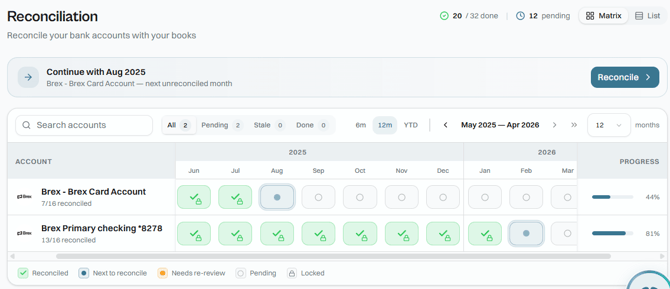
Each cell in the matrix has a status, shown as a color-coded icon:
| Icon | Status | Meaning |
|---|---|---|
| Green checkmark | Reconciled | Period finalized |
| Pulsing blue dot | Next to Reconcile | Your next recommended step |
| Amber dot | Needs Re-Review | A previously reconciled period has changed |
| Empty circle | Pending | Not yet reconciled |
| Purple lock | Locked | Period protected by a migration lock |
Reconciled cells may also show a small lock badge — this means the period was auto-locked when you finalized it, protecting it from accidental edits.
You can filter accounts by status using the All / Pending / Stale / Done tabs, or search by account name.
Steps
- Click Reconciliation in the left sidebar.
- Hover over any month cell to see its details:
- Reconciled months show the beginning balance, credits, debits, ending balance, the date it was reconciled, and the lock period. Click Review to re-examine the period.
- Next to Reconcile / Pending months with no discrepancy show a "Ready to Reconcile" message and a $0.00 discrepancy. Click Finalize Reconciliation to lock it without opening the review, or Review to inspect the transactions first.
- Next to Reconcile / Pending months with a discrepancy show the dollar amount of the gap and a Start Review button.
- Click Start Review (discrepancy) or Review (to inspect) to open the account's reconciliation detail page for that month.
- On the detail page, the Needs Review tab shows all transactions that require attention. Review and post each one — the reconciliation summary updates in real time, showing the current difference between your ledger balance and the bank balance.
- Once the difference reaches $0.00, click Finalize Reconciliation. Propio records the reconciliation date and automatically locks that period, preventing further edits to transactions dated on or before it.
🔒 Period lock system: If you try to modify a transaction that belongs to a finalized period, Propio will warn you before allowing the change. Administrators can unlock a period when needed — doing so returns the period to "Needs Re-Review" status and it will need to be reconciled again.
Tip: Reconcile monthly rather than at year-end. Catching a discrepancy in the same month it occurs takes minutes to resolve — catching it six months later can take hours.
Two Ways to Reconcile
Inside the detail page for each month, Propio offers two approaches:
Auto mode (default)
Propio calculates balances from the bank's imported transactions and compares them against your ledger. If everything matches, you can finalize the reconciliation in one click — no manual data entry required. This is the fast path for most months.
Statement Mode
For a more detailed review — such as when you want to audit a period or verify transactions one by one — click Statement Mode. This view presents the information visually so you can go through each transaction individually and compare it against the bank statement.
From either mode, you can click Analyze to open the AI assistant. The assistant reviews the full reconciliation and can help you identify inconsistencies, missing transactions, duplicates, or any other issue causing a discrepancy — without having to manually scan every line.
Matrix vs. List View
Use the Matrix / List toggle in the top-right corner to switch views. The Matrix view shows all accounts and months on a grid — best for spotting gaps across multiple accounts at once. The List view shows each account as a card — better for focusing on one account at a time.
Common Issues
-
Discrepancy won't reach zero? Check for duplicate transactions, missing entries, or transfers that weren't properly matched. You can also click Analyze to let the AI assistant identify the source of the difference. Use Drill Down from Reports to Transactions to investigate specific balances.
-
Transactions missing from Needs Review? Confirm the bank account is still connected and syncing correctly.
-
Month shows "Needs Re-Review" (amber)? A previously reconciled period was changed after it was finalized. See How Propio Determines When a Reconciled Period Becomes Stale for what triggers this and how to resolve it.