
When migrating a client from QuickBooks Desktop to Propio, two files are essential: the Account Listing and the Journal Report. The Account Listing gives Propio the complete Chart of Accounts structure; the Journal Report carries every transaction ever posted in the client's books. Together, they allow Propio to rebuild the client's accounting history with full accuracy from day one.
Before You Start
- You need QuickBooks Desktop open with the client's company file loaded.
- You will export both files as
.csv. Make sure you have a folder ready to save them — you'll upload both to Propio after. - These steps apply to QuickBooks Desktop (QBD). QuickBooks Online exports follow a different path.
Steps
Part 1: Export the Account Listing
- In the top menu, click Reports → List → Account Listing.
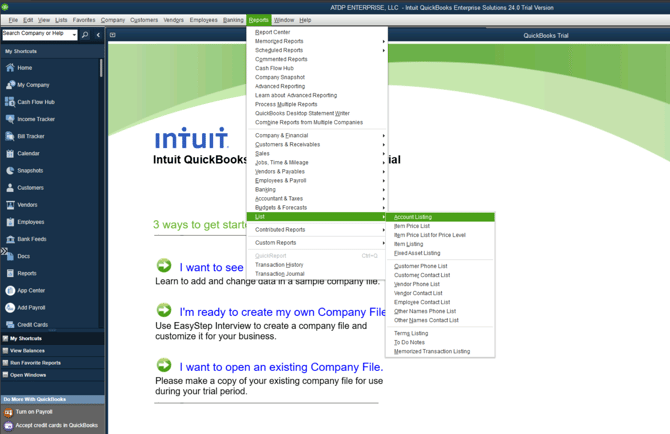
- Click Customize Report in the top-left of the report window.
- Go to the Filters tab.
Why this matters: QuickBooks Desktop often applies default filters that hide inactive or merged accounts. If you export with those filters active, Propio will only see a partial Chart of Accounts — missing accounts will need to be added manually later. Removing all filters ensures every account is included.
- Select each listed filter and then click Remove Selected Filter to remove it.
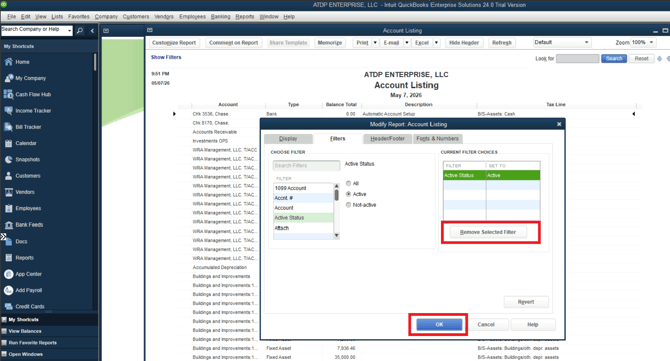
- Click OK to close the customization panel and reload the report.
- Click Excel at the top of the report.
- Select Create New Worksheet.
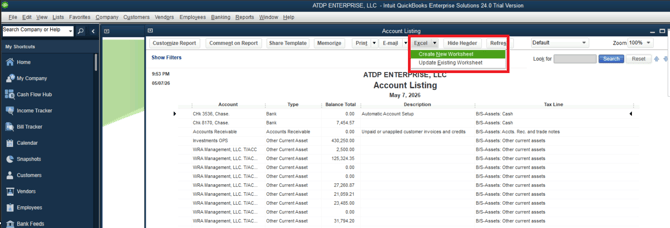
- Confirm that "Create a comma separated values (.csv) file" is selected.
- Click Export and save the file to your migration folder.
Part 2: Export the Journal Report
- In the top menu, click Reports → Accountant & Taxes → Journal.
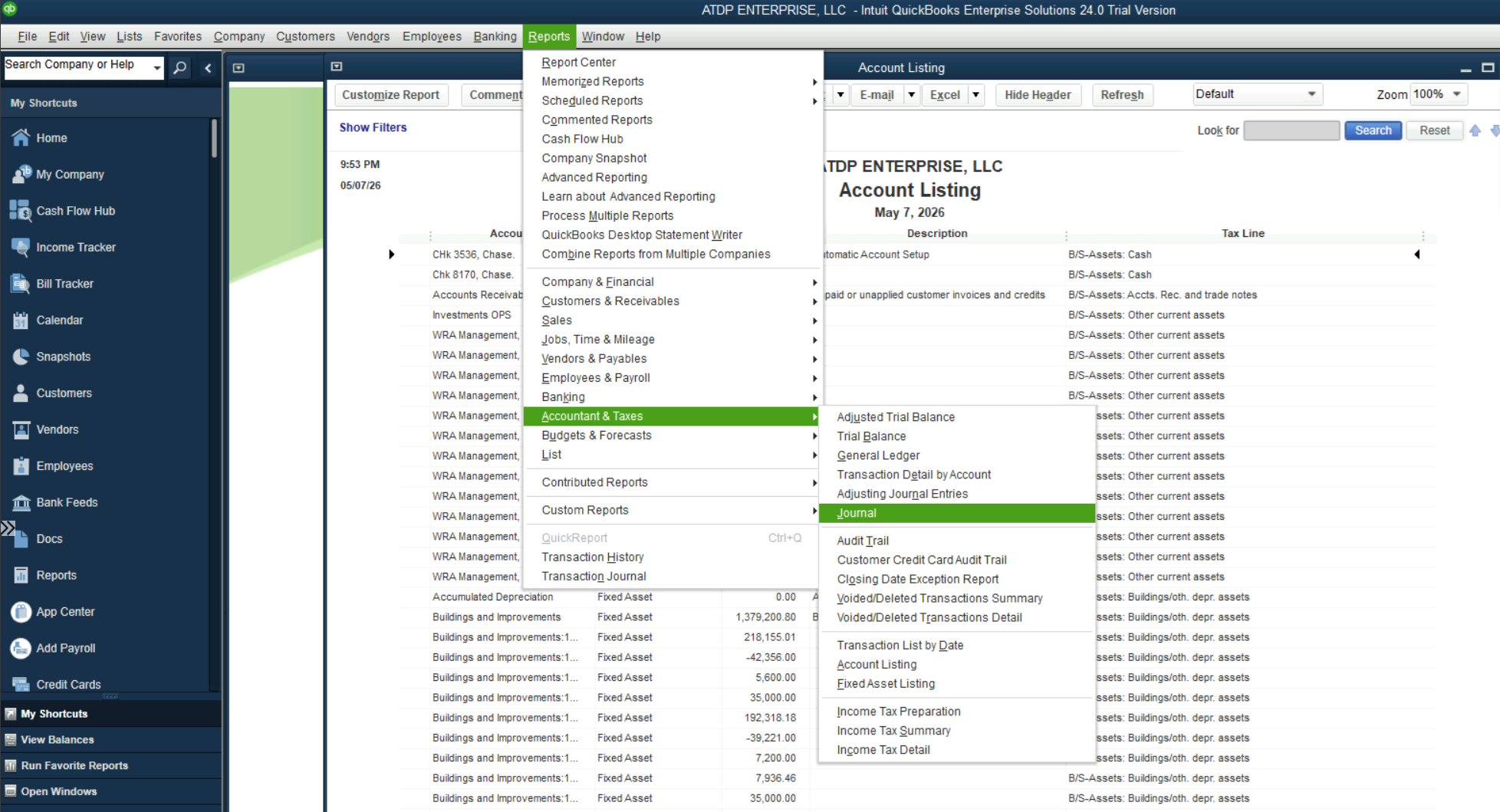
- In the Dates field at the top of the report, select All.
Why this matters: QuickBooks Desktop defaults to the current fiscal year. If you export with that setting, Propio only receives a partial transaction history. Selecting "All" captures every posted transaction from the beginning of the client's books — this is the complete historical record Propio needs to open balances and reports correctly.
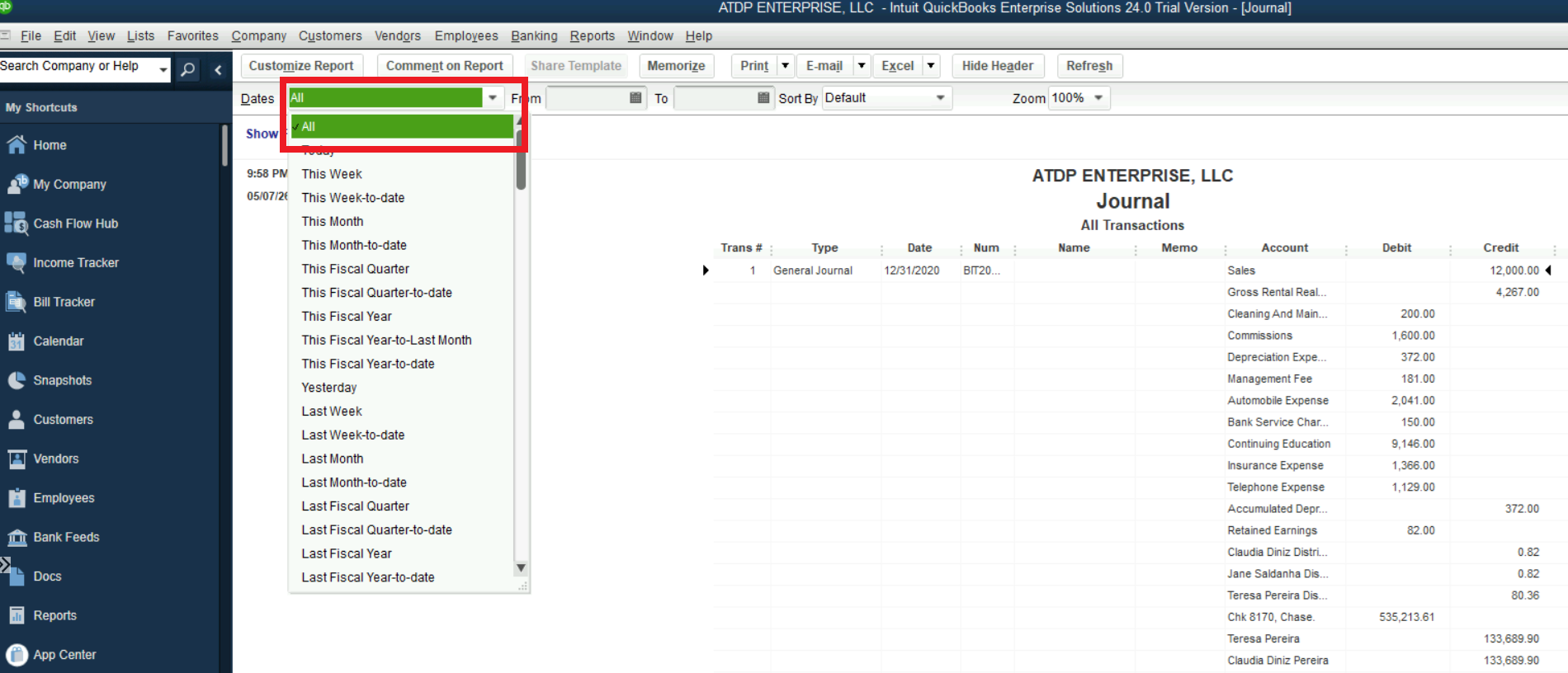
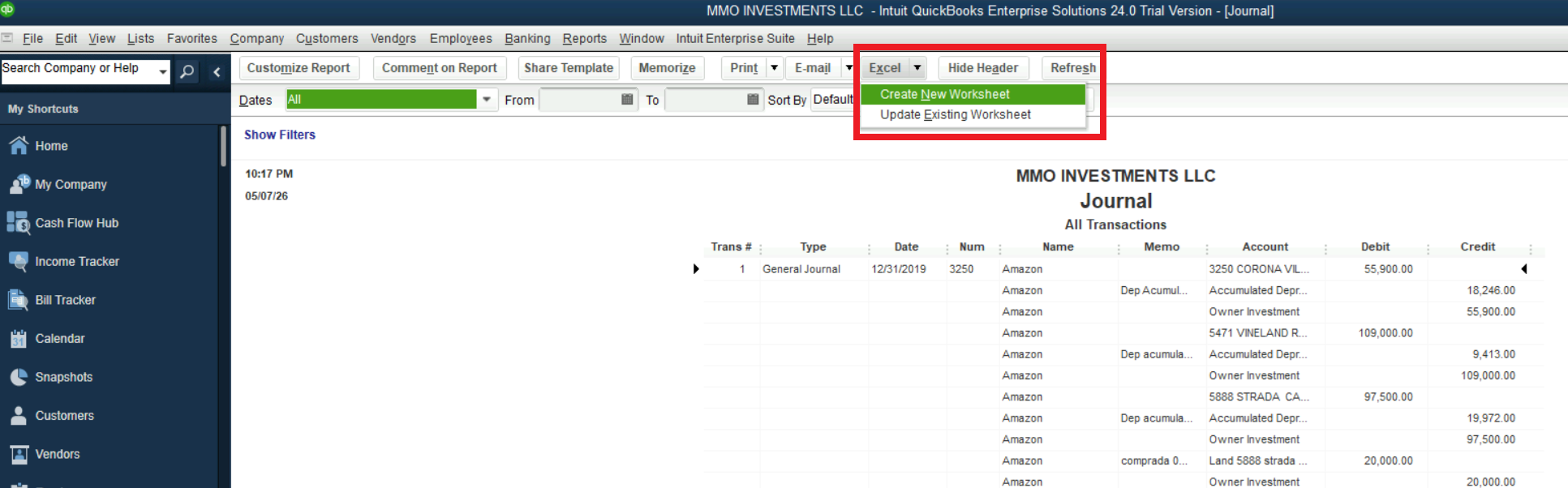
- Click Excel at the top of the report.
- Select Create New Worksheet.
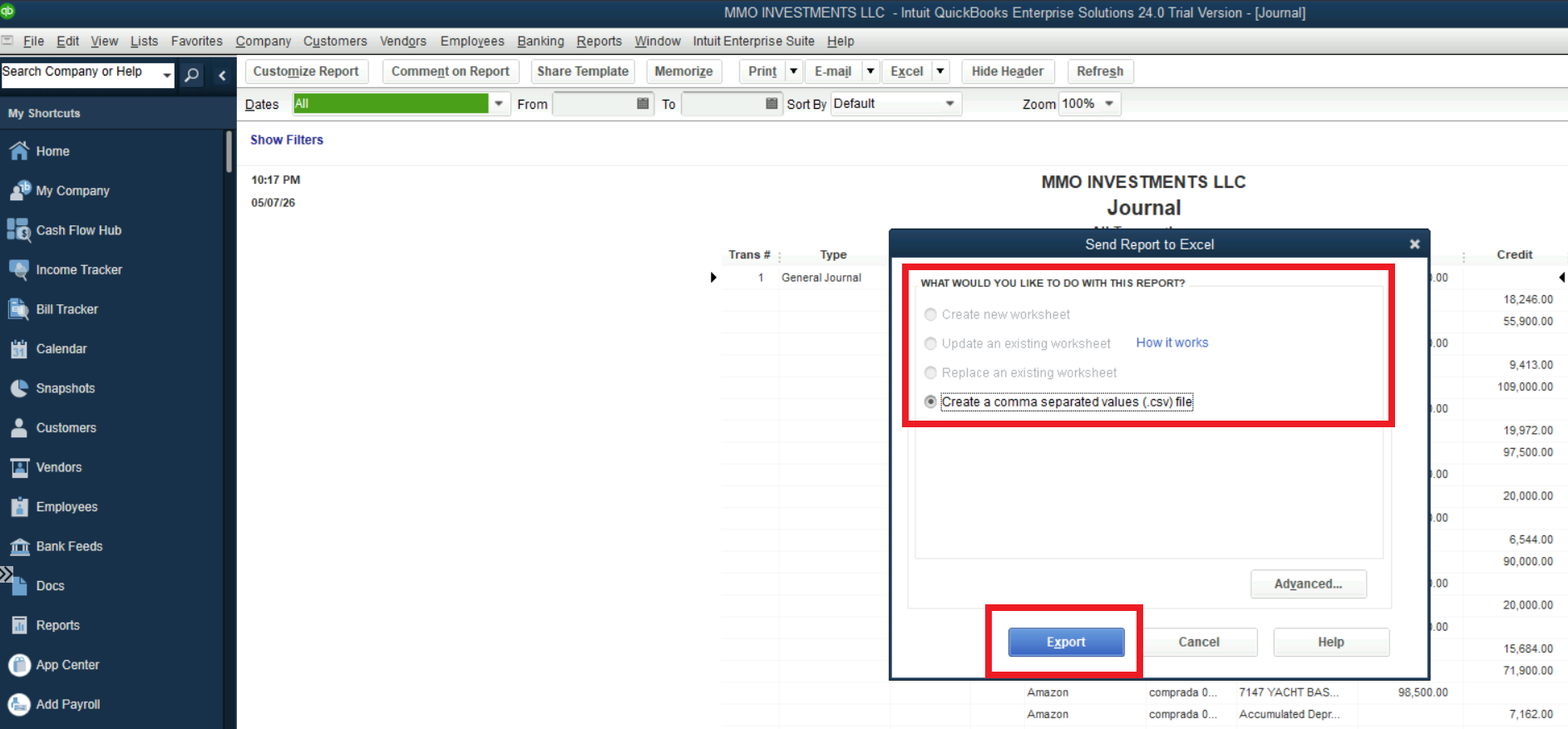
- Confirm that "Create a comma separated values (.csv) file" is selected.
- Click Export and save the file to your migration folder.
Tips 💡
- Large files are normal. For clients with several years of history, the Journal Report can be very large. Let the export complete fully before closing the dialog — QuickBooks may appear frozen while processing.
- Save both files together. Name them clearly (e.g.,
ClientName_AccountListing.csvandClientName_Journal.csv) and keep them in the same folder. You'll upload both to Propio in the next step. - Inactive accounts matter. A restaurant group client, for example, may have old location-specific accounts that are inactive but still have historical balances. Those accounts must be in the listing for reports to tie out correctly.