
Ideally, every client connects their bank account directly to Propio. For those where you only have access to their bank statements, you can upload PDFs to bring their transaction data in manually. Propio extracts dates, descriptions, and amounts automatically — you review, confirm, and categorize as usual.
Before You Start
Make sure you have your client's bank statements in PDF format. Other file types are not supported. You can upload up to 12 statements in a single import.
Steps
- Go to your client's Transactions page and click Import
- In the import dialog, click Upload files and complete the required fields: Date Range, Statement Type, and Bank Account
- Click Browse or drag and drop your PDF files into the upload area
- Click Upload All to begin processing — Propio will extract transaction dates, descriptions, and amounts from each file. This may take a few moments.
- Click Back and wait for the Status column to change from Processing to Preview Ready
- In the Actions column, click Preview to review the extracted transactions
- If the balance is not reconciled automatically, check start and end balances first, then review transactions individually — deselect any that appear incorrect or duplicated
- Once balances are reconciled, click Finalize Upload to complete the import
- The imported transactions will appear in your transaction list, ready for categorization
View of the Preview page
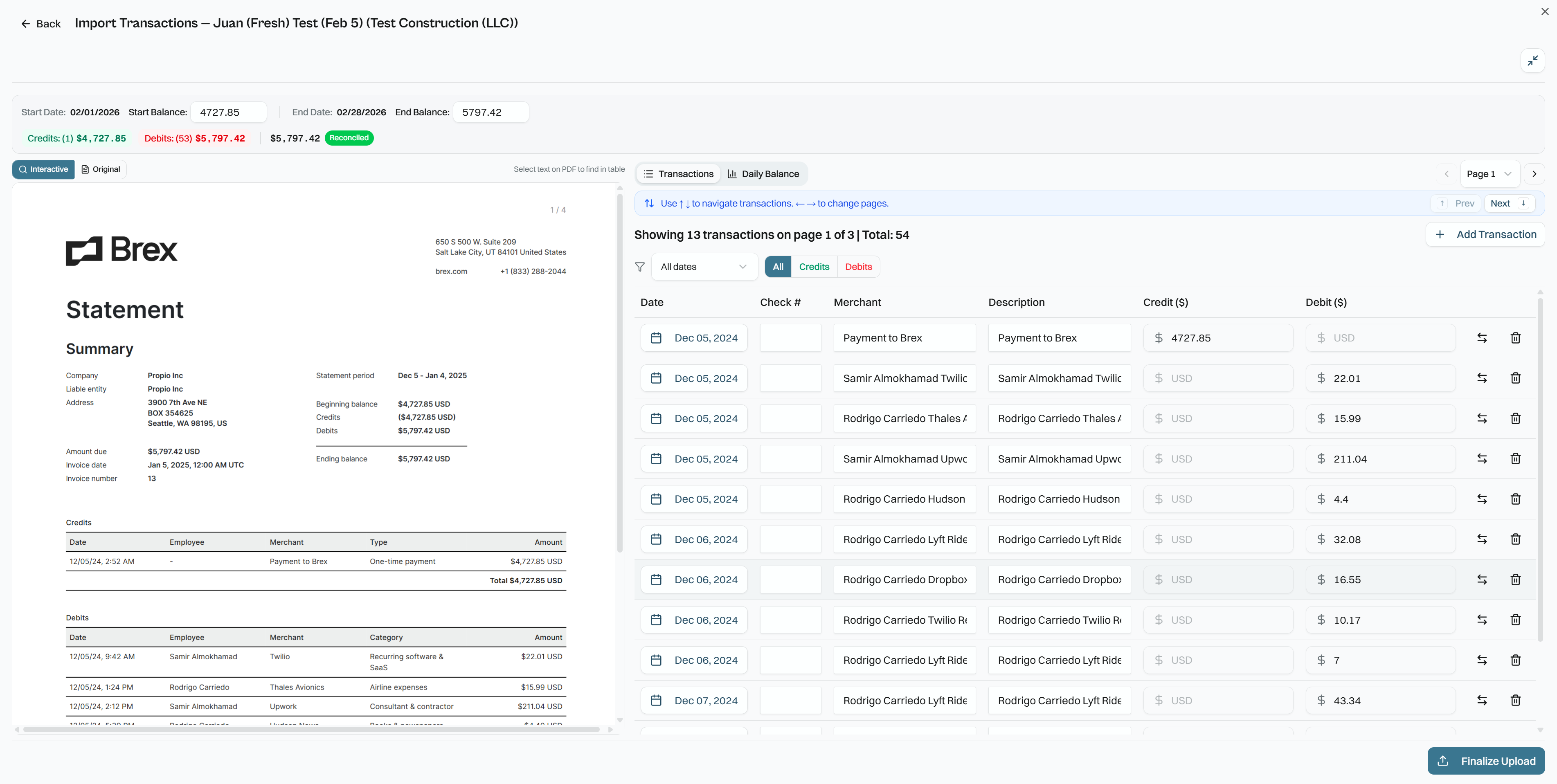
💡 Tip: Start your review with the opening and closing balances — if those match your statement, and the numbers are reconciled, the extraction is accurate. If they don't, review transaction by transaction before finalizing. Taking this extra step upfront prevents reconciliation issues later.
Common Issues
- Status stuck on Processing? Large or complex PDFs may take longer. Wait a few minutes and refresh before trying again.
- Transactions extracted incorrectly? In step 7, you can click on Add Transactions, to manually add new transactions. You can also adjust Dates, Credits and Debits, Merchants and Descriptions manually.
Related Articles