
Propio's AI pipeline automatically categorizes transactions the moment they arrive — before you open the client. Understand how it works so you can set the right expectations, spot anything that needs your attention, and get faster over time.
When new transactions arrive — whether from a connected bank account or a bank statement upload — Propio's pipeline runs automatically in the background. It first tries to resolve each transaction using known patterns (transfers, payroll, credit card payments) and existing vendor rules. Only unrecognized transactions go to the AI models. Each AI suggestion comes with a confidence signal: a green dot means the AI is highly confident (≥90%), a yellow dot means it needs your review. Over time, as you review and post transactions, Propio builds vendor rules — so the same vendor gets categorized instantly on every future import without ever reaching the AI.
How the Pipeline Works
1. Pattern Detection Runs First
Before any AI is involved, Propio analyzes the raw transaction description to identify its type:
- Transfers — matching amounts across two accounts within 6 days are automatically detected and linked
- Credit card payments — flagged by description pattern and matched to your connected accounts
- Payroll — keyword patterns (e.g., "ADP", "GUSTO", "PAYROLL") are detected and tagged accordingly
- Passthrough payments — Zelle, Venmo, PayPal, and similar processors are recognized and the actual payee is extracted when available
- Checks — parked in Waiting until check image data (payee name, memo) is extracted and matched
This step is instant and requires no AI — it resolves a significant portion of transactions on its own.
2. Vendor Rules Apply Next
If a vendor rule exists for the matched vendor, the transaction is categorized immediately using that rule. Vendor rules are created in two ways:
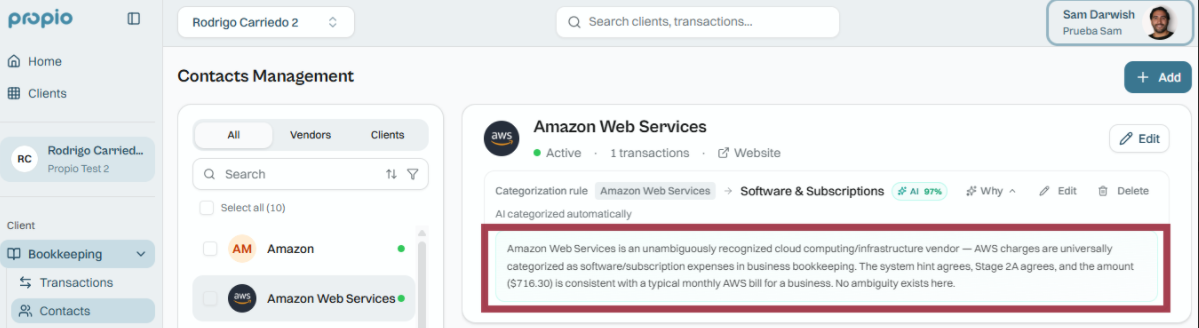
- Automatically — when the AI categorizes a vendor with ≥95% confidence, it creates a rule and applies it to all unposted transactions from that vendor
- Manually — when you change a category and choose to apply it going forward (from any transaction)
Once a rule exists, that vendor's transactions never wait for AI again.
Visualize the automatic rules created by AI on the Contacts page
3. AI Models Handle the Rest
Transactions without a matching rule go through a cascade of AI models — Claude (Anthropic) followed by Google Gemini — each with a confidence threshold. The first model to reach the required confidence level wins. If no model reaches a high-confidence result, the transaction is routed to Review for your review.
4. Auto-Post Determines What You See
With auto-post ON (the default): transactions categorized at ≥90% confidence are posted automatically and appear in Posted. Yellow-dot transactions (below 90%) land in Review.
With auto-post OFF: all suggestions land in Review regardless of confidence — you approve every category before it posts.
What the AI INSIGHT Panel Shows
When you open any transaction in the Review tab, you'll see an AI INSIGHT section at the bottom. It shows the suggested category and the AI's reasoning — including its confidence level and why it chose that account over alternatives.
Visualize the AI Insights section in the transation detail panel
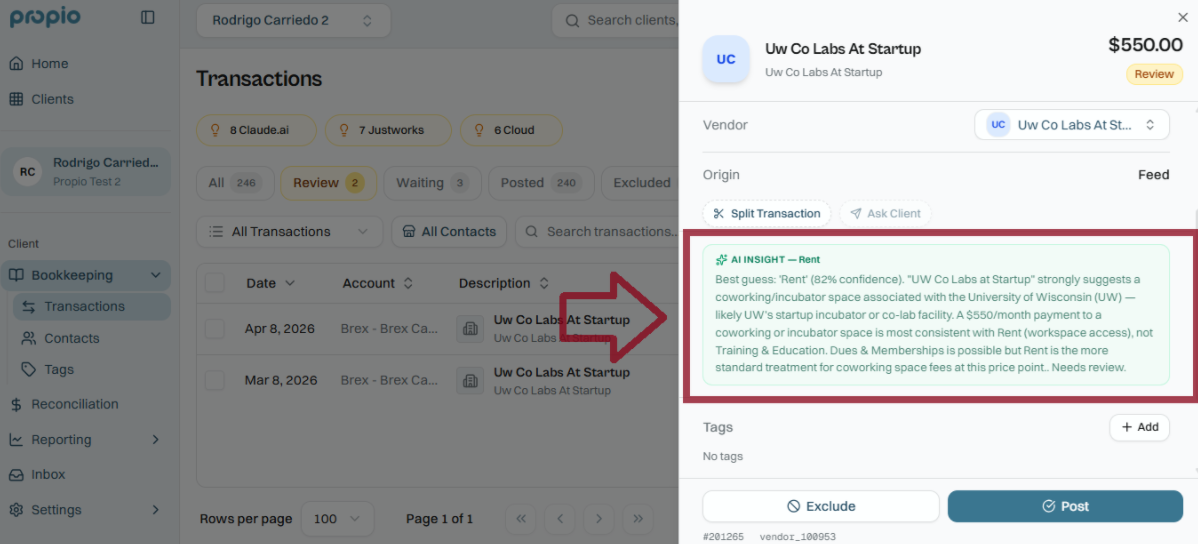
This is the right place to gut-check an uncertain suggestion. If the reasoning makes sense for your client, post it. If something's off, override the category and the correction feeds into future rules.
How Accuracy Improves Over Time
Every time you review, correct, or approve a category in Propio, you're building vendor rules. Those rules are applied instantly on future imports — no AI needed. The result: over time, fewer transactions reach Review, and your review time per import drops.
The fastest way to improve accuracy for a new client is to work through your first import completely — every correction creates a rule that pays forward on every future sync.
Tips
💡 Check transactions park in Waiting for a reason. Propio waits for check image data (payee name, memo line) before processing checks through the pipeline. If check images are available in your bank connection or statement, they'll flow through automatically. See Bank Statements, Check Images & Client Setup for setup details.
💡 Transfers resolve without you. If you see a transfer already posted before you've touched it, the pipeline matched it automatically based on amount and date. You can always undo a transfer match from the transaction if it's wrong.
💡 Correcting one transaction can fix many. When you change a category on a vendor transaction, Propio offers to apply the rule retroactively — to all unposted transactions from that vendor, or even to already-posted ones. This is the fastest way to clean up a vendor that was consistently miscategorized.
Common Issues
Transactions are stuck in Waiting and not moving.
Most often this means the pipeline is still processing (check images pending, or a large first import). If transactions remain in Waiting for more than a few minutes after a sync completes, try refreshing. If the issue persists, contact support.
A vendor keeps getting the wrong category.
The AI didn't have a rule for it yet. Correct the category once and choose to apply it going forward — that creates the rule and prevents the issue on future imports.
A transfer was matched incorrectly.
Open the transaction to see the detail panel and undo the transfer match. You can then categorize each transaction independently.